> ## Documentation Index
> Fetch the complete documentation index at: https://docs.ctrlnode.ai/llms.txt
> Use this file to discover all available pages before exploring further.
# Projects overview
> Workspaces — agents, tasks, files, workflows, and project work directory
A **project** is your workspace in CtrlNode. Each project has its own:
* Agents (**Team**)
* Tasks and Kanban board
* **Files** (task artifacts, workspace disk, agent files)
* **Workflows** (pipeline definitions)
* **Routines** (scheduled runs)
* **Events** (audit stream)
* Optional **Project work directory** (path on the Bridge machine)
Use one project per product, client, or repository.
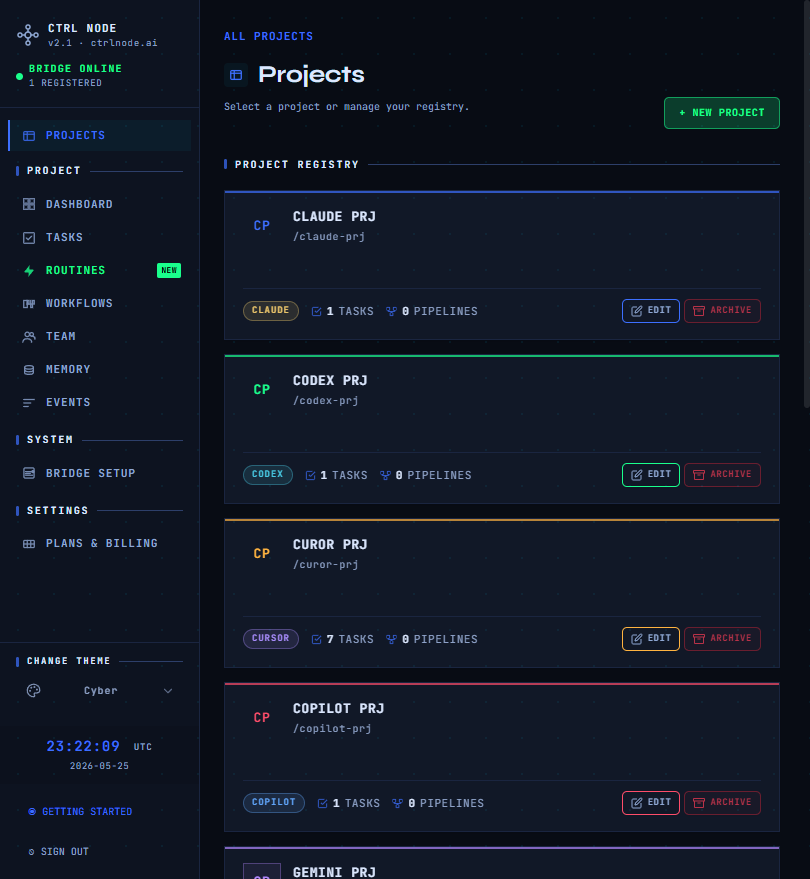
## Open Projects
Route: `/projects`
* **New project** — name, slug, default **agent type** (CLI badge), optional **project work directory**
* **Select** a card to enter the project (sidebar shows CLI badge + project name)
* **Archive / restore / delete** from the project menu
Project cards show a second line under the CLI: either the configured work directory path or **Bridge workspace home** when none is set.
## Switching projects
Click the **project context** in the sidebar (colored CLI badge + name) to return to `/projects`.
## After you create a project
You are redirected to:
```text theme={null}
/projects/{projectId}/dashboard
```
First-time users may complete `/setup` (project → token → agent → task) before seeing the full layout.
## Related
Configure the Bridge path for WORK DIRECTORY tasks and Files WORKSPACE.
MODE (OUTPUT ONLY vs WORK DIRECTORY) when creating tasks.